Friday, June 30, 2017

Resolve Lotus Notes 9.0.x cannot open picture or photo attachment directly issue on Windows 10 (1607)

Problem: When you open a photo/picture attachment in Lotus Notes email, you will receive a error message "It looks like you don't have permission to view this file. Check the permissions and try again."

image

Solution 1: (For user who never open the apps “Photo” before)

Step 1: Open the apps "Photo"

Step 2: Click "Find more"

Step 3: Select "C:\Users"

image

Step 4: Close


Solution 2:

Step 1: Open the apps "Photo"

Step 2: Click "Setting"

image

Step 3: Add "Add a folder"

image

Step 4: Select "Users"

image Print Friendly and PDF
Share/Bookmark

Two methods (workaround) standard users can use to start Task Manager without elevation (or administrator access) on Windows 10

#1: Use a 3rd party Task Manager such as Process Explorer (https://technet.microsoft.com/en-us/sysinternals/processexplorer.aspx) or Process Hacker (http://processhacker.sourceforge.net/).

#2: Using this workaround:

  • 1: Open a command prompt
  • 2: Type "set __compat_layer=runasinvoker" (without the quotes) and hit enter.
  • 3: Type "taskmgr.exe" and hit enter.

image

You might create a batch file "task manager.cmd" and create a shortcut on desktop to run this batch

image

Reference:

https://www.tenforums.com/general-support/61587-win-10-task-manager-now-only-works-admin-mode-2.html

Print Friendly and PDF
Share/Bookmark

Thursday, June 29, 2017

Windows 10 Insider Preview (RS3) Build 16232 for PC released on Fast Ring

image

It just release this morning.

Print Friendly and PDF
Share/Bookmark

(Ransomware) Petya detection from McAfee VSE - How to check the McAfee VSE 8.8 Product version, Engine version, McAfee DAT version and McAfee ExtraDat version local and remotely

1. Create powershell file call "check_mcafee_dat.ps1" by using the following:


$computer = read-host "computer to query"

$ProductVer = [Microsoft.Win32.RegistryKey]::OpenRemoteBaseKey('LocalMachine',$Computer).OpenSubKey('SOFTWARE\McAfee\DesktopProtection').GetValue('szProductVer')

$EngineVer = [Microsoft.Win32.RegistryKey]::OpenRemoteBaseKey('LocalMachine',$Computer).OpenSubKey('SOFTWARE\McAfee\AVEngine').GetValue('EngineVersionMajor')

$DatVer = [Microsoft.Win32.RegistryKey]::OpenRemoteBaseKey('LocalMachine',$Computer).OpenSubKey('SOFTWARE\McAfee\AVEngine').GetValue('AVDatVersion')

$ExtraDatVer = [Microsoft.Win32.RegistryKey]::OpenRemoteBaseKey('LocalMachine',$Computer).OpenSubKey('SOFTWARE\McAfee\AVEngine').GetValue('ExtraDatValueName_0')


Write-Host "$computer - Product version: $ProductVer Engine version: $EngineVer Dat version: $DatVer ExtraDat version: $ExtraDatVer"


2. Run the "check_mcafee_dat.ps1" by using local admin or privilege account

3. Enter the hostname of the target machine


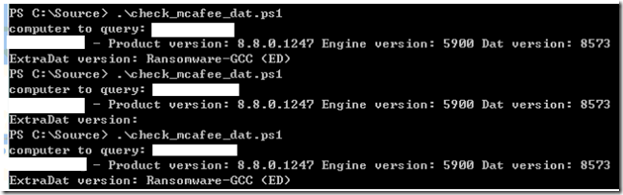
It should return the information like the following:
image


Remark: The DAT 8574 (27 Jun 2017) already include the Petya detection.


Reference:
https://securingtomorrow.mcafee.com/mcafee-labs/new-variant-petya-ransomware-spreading-like-wildfire/

https://gallery.technet.microsoft.com/scriptcenter/f5f96771-215e-4114-be0b-09c80f5f2c6f/view/Discussions#content

Print Friendly and PDF
Share/Bookmark

Check the build version and hotfix level of McAfee Endpoint Security (ENS) from registry

Go to the registry: HKEY_LOCAL_MACHINE\SOFTWARE\McAfee\Endpoint\AV , check the "BuildNumber"

image

The "BuildNumber" from registry also indicate the hotfix level of McAfee Endpoint Security:

image

https://kc.mcafee.com/corporate/index?page=content&id=KB82761
 
Print Friendly and PDF
Share/Bookmark

Windows 10 for arm-based Phone Devices 10.0.15063.447 released on release preview

image

My "unsupported" phone Nokia Lumia 636 which is on "release preview" channel, it receive the update .447

Print Friendly and PDF
Share/Bookmark

Monday, June 26, 2017

Upgrade Samsung TV (UA32H5100AJXZK) firmware

1. Check your Samsung TV Model, Model Code, firmware version....

image

image

image

image

2. Go to download the firmware from http://www.samsung.com/hk/support/model/UA32H5100AJXZK

image

3. Run the unzip and copy the "upgrade.msd" to the root of the USB thumb drive

image

4. Connect the USB thumb drive to the TV and run "upgrade"

image

5. It will ask you to use the "USB" source to upgrade or not, please click "yes" to use "USB" source.

image

6. Click "Yes"

image

7. Wait for auto restart the TV

image

8. You will a message box like the following:

image

The upgrade completed.

image

Print Friendly and PDF
Share/Bookmark